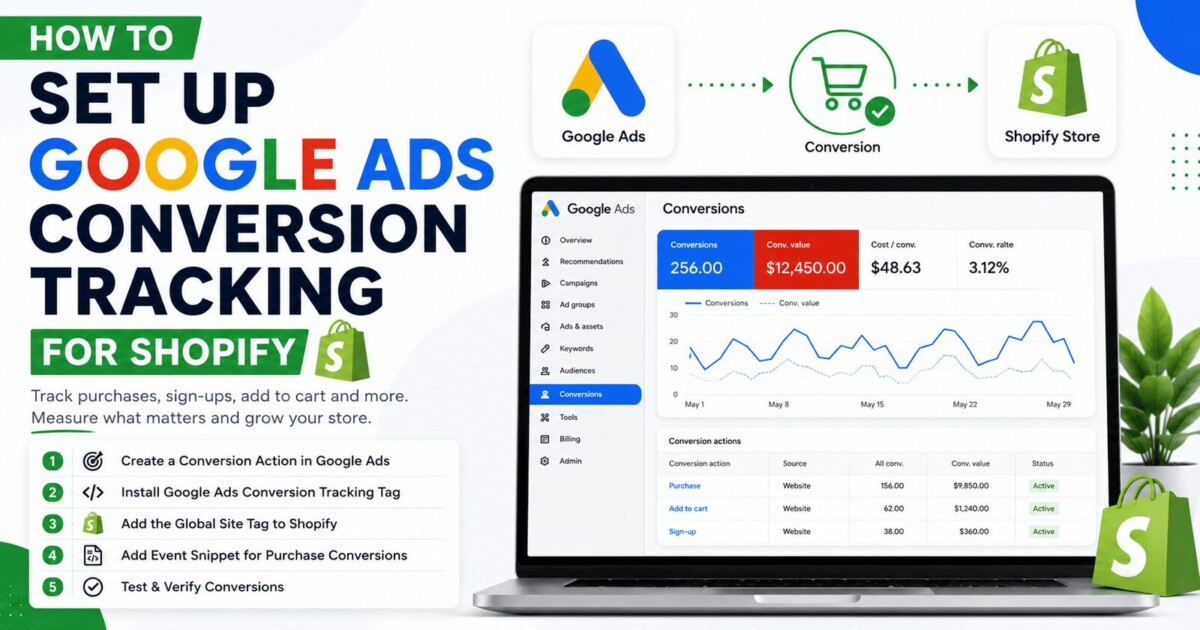
Setting up conversion tracking correctly is one of the most important parts of running Google Ads for a Shopify store. If your tracking is wrong, your data will be wrong, your optimization will be wrong, and your ad spend can go to waste.
This guide explains two ways to set up Shopify conversion tracking for Google Ads: a super simple method using the Shopify app, and a more advanced method using a Google Ads tag and custom code. The safest approach is to set up both, then make sure only one is used as the primary conversion source.
Why Conversion Tracking Matters
Conversion tracking tells Google Ads when a sale happens on your store. Without it, Google cannot properly learn which ads, keywords, or audiences are driving revenue.
For Shopify stores, this matters even more because e-commerce campaigns depend on accurate purchase data. If the conversion data is missing or duplicated, your account performance can look better or worse than it really is.
Method 1: Use the Shopify Google App
The easiest way to set up tracking is through Shopify’s built-in Google app. This method is simple, fast, and works well for most store owners.
Step 1: Install the app
Inside Shopify, search for the Google and YouTube app and install it. After installation, connect your Google account to Shopify.
Step 2: Connect your Google accounts
If you already have a Google Ads account and Merchant Center account, make sure the email has access to both. If you do not have a Merchant Center account yet, create a new one during setup.
Step 3: Enable conversion tracking
Inside the Google and YouTube app, go to settings and find conversion tracking. Make sure it is turned on.
Step 4: Check the connection in Google Ads
In your Google Ads account, go to the data manager section and connect Shopify there as well. This helps link your store, Merchant Center, and Google Ads account properly.
Step 5: Turn on customer match
If available, enable customer match so Google can create audience lists based on customer data. This helps improve remarketing and audience performance.
Method 2: Use a Google Ads Tag
The second method is a more advanced setup using a Google Ads conversion tag. This is useful as a backup and gives you more control over tracking.
Step 1: Create a conversion action
In Google Ads, go to conversions and create a new conversion action manually. Choose purchase as the conversion type and name it clearly, such as Shopify purchase.
Step 2: Set the correct conversion settings
Use the following settings:
-
Conversion goal: purchase.
-
Value: use different values for each conversion.
-
Count: every conversion.
-
Conversion window: 30 days.
-
Attribution: data-driven.
-
Enhanced conversions: enabled through Google Ads tag.
Step 3: Copy the event snippet
After creating the conversion action, open the tag setup and choose to install the tag yourself. Copy the event snippet that Google provides.
Step 4: Add a custom pixel in Shopify
In Shopify, go to settings, then customer events, and add a custom pixel. Name it something like Google Ads conversion tracking.
Step 5: Paste and edit the code
Paste the code into the custom pixel area and update the conversion ID and conversion label with the values from your Google Ads event snippet.
Step 6: Save and connect
Save the pixel and connect it. Then verify that it appears in your Shopify customer events list.
Testing the Tracking
After setup, test the tracking by placing a test order or a real order if your store is live. Use a test payment method if needed.
When the checkout is completed, confirm that the Google Ads tag fires correctly. It may take several hours or even until the next day before Google Ads shows the conversion as active.
Avoid Double Counting
If you use both the Shopify app and the Google Ads tag, do not leave both set as primary. That can cause duplicate conversion reporting.
What to do instead
Pick one tag as the primary conversion source. Set the other one to secondary so it still collects data but does not count toward campaign optimization or conversion reporting.
This gives you a backup tracking setup without inflating your results.
Recommended Setup
For most Shopify stores, the best setup is:
-
Use the Google and YouTube app.
-
Also install the Google Ads tag as a backup.
-
Make only one of them primary.
-
Set the other one to secondary.
This way, if one system glitches, you still have another tracking source ready.
Final Checks
Before running serious ad spend, make sure:
-
Google Ads is linked to Shopify.
-
Merchant Center is connected.
-
Conversion tracking is firing.
-
Only one primary conversion source is active.
-
The purchase event is being recorded correctly.
If those five things are in place, your account is much more likely to optimize correctly.
Final Thoughts
Conversion tracking is not the most exciting part of Google Ads, but it is one of the most important. A strong ad strategy depends on clean data, and clean data starts with proper setup.
If you are running a Shopify store, the simplest path is to use the Google and YouTube app first, then add a backup Google Ads tag for safety. That gives you both convenience and reliability.